
 Posted by
 - Introduction and Background
- Understanding Authentication Mechanism Assurance
- Investigating CA Privilege Escalation Paths
- Exploiting altSecurityIdentities and AMA
- Findings and Consequences
- Protection and Mitigation
- Proof of Concept
- Final Thoughts and Wrap-Up
Introduction and Background
A few years back, I wrote an post on how you can configure an ADCS CA to allow forest compromise by issuing certificates for sensitive accounts and then using them to authenticate as said accounts. Since then, Microsoft has released KB5014754 which changes how certificate authentication in Active Directory works, by requiring a strong mapping between the certificate and the target account. The forced Full Enforcement mode was originally scheduled for 2023 but has since been postponed several times (likely due to customers requesting more time to update their infrastructure) however you can enable it manually by following the steps in the KB. For the intents and purposes of this post, I will assume Full Enforcement has been enabled as it is the future default mode.
Back when KB5014754 was released in May 2022, I did some testing to figure out how the certificate autentication process had changed and what repercussions it had on our usual design philosophy. The original flow is documented in the Certificate Requirements and Enumeration article on Microsoft Learn:
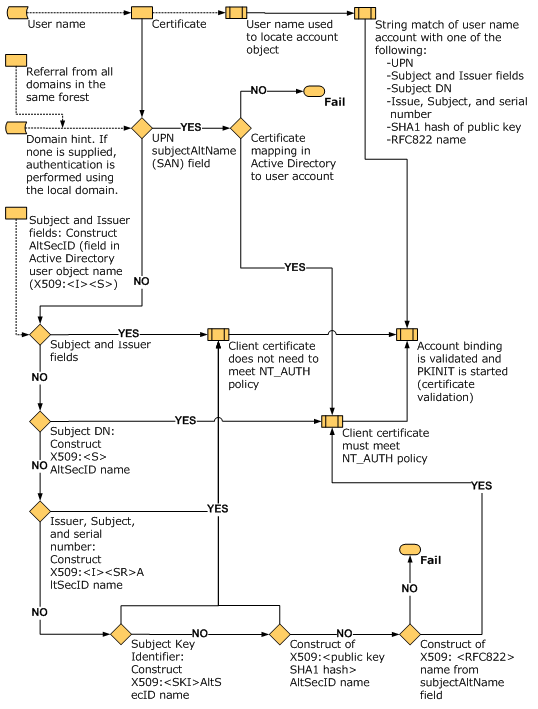
However, even today while writing this article (2024-04-07), Microsoft still haven’t updated the flowchart to include the SID Extension. In addition, they also just released (in the February 2024 Cumulative Update) an additional method of including the SID in certificates using the SAN extension.
So I took it upon myself to create a new flowchart strictly for the Full Enforcement phase of KB5014754.
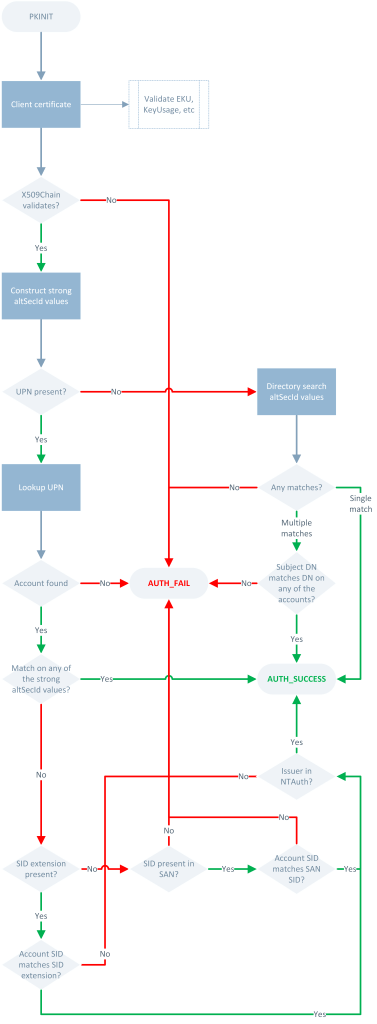
Of course, as with anything on the Internet, you shouldn’t trust this flowchart implicitly. It is based on my own observations and testing, and I strongly urge you to perform your own tests or pressure Microsoft to provide an updated flowchart. The important part, which I will dive into later, is that the CA certificate only needs to be published in the NTAuthCertificates object if either of the SID options (extension or SAN) is used in the certificate, but not if altSecurityIdentities on the target account is mapped to the certificate.
Essentially, what this means is that you either need control over the CA or the target account to compromise it. If you control the CA (either through being a Certificate Manager, by using Supply in Request templates, or being an administrator of the CA), you can include the SID extension or add the SID in the SAN extension in issued certificates. If you do not control the CA, but have write privileges to the account, you can update the altSecurityIdentities attribute to map it to an issued certificate. The main difference, as indicated earlier, is that the CA does not need to be trusted in the NTAuthCertificates object in the latter scenario. In fact, the CA doesn’t even need to be explicitly trusted by the domain controllers – if the Root CA is explicitly trusted, and the DCs can download the issuing CA certificate through AIA, the DCs will trust issued certificates for PKINIT authentication.
So what are the implications here? If you are a certificate manager in the CA, then you can include the SID of an account in issued certificates. If you also have Supply in Request templates with the Client Authentication EKU, you could impersonate any account, as long as the CA certificate is published in NTAuthCertificates. So this method does not work with any CA, only CAs that are explicitly designated for PKINIT authentication.
On the other hand, if you have control over a regular user account, as is often the case with Service Desk technicians, then you can compromise those accounts anyway as you probably have Full Control or at least limited Modify privileges on them and can change their passwords at will. Only if you have control over a privileged account, such as one belonging to an Enterprise Administrator, can you update their altSecurityIdentities attribute and compromise it using a certificate, but again, then you probably already have some other means of control and your delegation model is broken from the get-go.
So it appears that to compromise a forest, you either need to exert control over an NTAuth-enabled CA, or you need control over a highly privileged account. In either case, it is game over before we even begin. So why am I writing this post? Well, it turns out that there is a scenario where you can indeed compromise a forest by having Certificate Manager permission in a CA that is implicitly trusted by your domain controllers, granted that you also have control over a non-privileged user account. But to understand how this can be abused, we first have to understand what Authentication Mechanism Assurance is, and how it works.
Understanding Authentication Mechanism Assurance
Authentication Mechanism Assurance (AMA) is a feature introduced in Active Directory back in Windows Server 2008 R2 that allows administrators to require certificate-based authentication to be granted certain privileges. Essentially, by linking a certain Issuance Policy OID to a universal group, and including that OID in the Certificate Policies (2.5.29.32) extension in the issued certificate, you can ensure that the group membership is only granted if the certificate is used for authentication through PKINIT. If the user instead authenticates using their password, the group membership is not granted. Therefore, if and only if the user authenticates using the certificate will they be granted the privilege1.
Both me and my colleagues have utilized AMA to protect the Enterprise Admins group in many past and present deployments, by linking an issuance policy OID to a custom universal group that is then added as a member to Enterprise Admins. The OID is registered in the CN=OID,CN=Public Key Services,CN=Services,CN=Configuration,DC=forestroot container, and the group is linked to the OID through the msDS-OIDToGroupLink attribute.
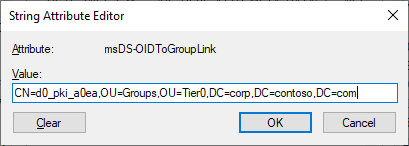
msDS-OIDToGroupLink attribute of the OID objectTier0 administrators are then granted smartcards or Yubikeys with two certificates, both pointing to the same account, but one without the issuance policy and the other with it included. When using the first certificate to authenticate to the Tier0 PAW, they are simply regular unprivileged users. When they use the second certificate to authenticate to jump hosts or admin servers, they become Enterprise Admins. Thus, we have a single account, but with different privilege levels depending on the certificate that was used to authenticate.
As for the CA and its templates, we usually have a regular Tier0 user template, and a privileged Enterprise Admins template that includes the OID in the Certificate Policies extension (msPKI-Certificate-Policy attribute of the template).
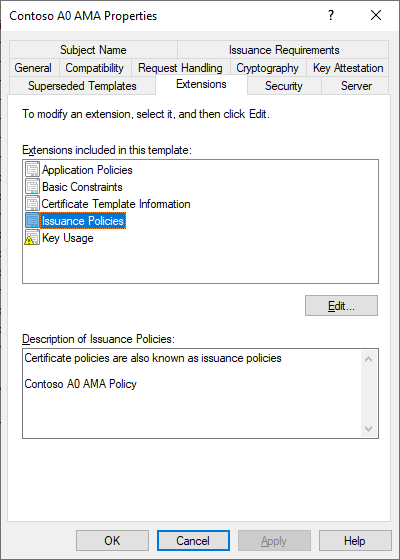
While a group is linked to an OID in this manner, it is worth noting that Active Directory prevents adding any members to it through the member attribute. This ensures that membership in the group is only granted when authenticating with a certificate that includes the Issuance Policy OID.
- It should be noted that the group membership is granted as long as the certificate was used for the initial authentication. If the user locks and unlocks the session with their password afterwards, the group membership is still included in their token. Microsoft has an article about it. I highly suggest enabling
Smartcard is required for interactive logonon accounts using this feature. ↩︎
Investigating CA Privilege Escalation Paths
Back in 2022, when I was still investigating how you could securely configure a CA considering the changes implemented by KB5014754, I had figured out that having the Certificate Manager (Issue and Manage Certificates) privilege in a CA, you have the capability of modifying a Pending request (the CA certificate manager approval checkbox in the template) by adding additional extensions to it that were not included in the original request. This is a great feature, especially when you consider TLS certificate requests originating from appliances or similar, where you could then augment the request and add additional DNS names to its SAN extension before issuing it.
However, being able to add arbitrary values to the SAN extension is, of course, a security risk, as I outlined in my Supply in the Request Shenanigans article. And yet, with KB5014754 the issue had been somewhat alleviated as the KDCs requires a strong mapping in addition to just the identity being represented in the SAN extension. The problem is that as a Certificate Manager, you can add any arbitrary extension to a pending request, including the SID extension.
So I had came to the conclusion that if you needed non-Tier0 administrators as Certificate Managers in the CA, you would need to remove the CA certificate from NTAuth to prevent privilege escalation, as the KDC requires any certificate with the SID extension or SAN SID values to meet the NT_AUTH policy. So you could have two Enterprise CAs, one that is published in NTAuth and where you do not allow any non-Tier0 administrators any Certificate Manager or other privileged permissions, and where you do not allow Supply in Request templates, and another Enterprise CA where you do allow it, but where the CA certificate is not published in NTAuth. In addition, you could explicitly block the SID extension completely by adding its OID to the DisableExtensionList registry value of the CA, which effectively prevents it from being included regardless of how it was added.
With this configuration, you could use the NTAuth CA to issue autoenrolled certificates with the SID extension for clients, and use the other CA to allow web server admins to issue and manage TLS certificates, for instance.
Exploiting altSecurityIdentities and AMA
Later in 2022, I had figured out that you could have the new SID extension included in an issued certificate in multiple ways, not only by being a Certificate Manager in the CA as mentioned previously, but also through simply including it in the original certificate request – at least if you submit it using a Supply in Request template. One day however, I was struck by a thought.
If I can include certain extensions as part of the original request when submitting it to the CA, is there something stopping me from including a custom Certificate Policies extension?
As it turns out: no. By default, there is nothing stopping you from creating your own Certificate Policies (2.5.29.32) extension and including it in the request. In fact, the CA will happily issue a certificate for you that indeed includes the extension and any values you submitted. Likewise, if you are a Certificate Manager, just as you can add a custom SAN to a pending request, you can also add a custom Certificate Policies extension to a pending request.
This had me worried, as I knew from previous experience that as long as you had write permissions to at least one user account, you could alter its altSecurityIdentities to match an issued certificate from any trusted CA, even if not trusted in NTAuth. All that mattered was that the KDCs explicitly or implicitly trusted the CA (the CRL of said CA must also be accessible by the KDCs, but I’ll consider that a given if it is trusted). If I then issue a certificate from such a CA, that also includes the Certificate Policies extension with an OID that is mapped through AMA to a privileged group, such as Enterprise Admins… I’m sure you can see where this is going.
So I quickly tested this. I issued a certificate that contained the Certificate Policies extension with the Enterprise Admins AMA OID and had the UPN of a normal user account from a CA that was not in NTAuth, and subsequently added a strong altSecurityIdentities mapping to the account.
I had expected the authentication to work as expected, as the above is a perfectly valid process for issuing regular Smartcard Logon certificates (albeit not a very secure one). What I had not expected was that the KDC actually included Enterprise Admins in my TGT. I had some vague hope that this would not be the case, but alas.
I reported this particular scenario to MSRC, in an attempt for Microsoft to at least acknowledge the issue. A colleague of mine suggested that for AMA to work, the KDC should require the issuing CA certificate to be in NTAuth, which I agree could be a suitable solution. It took almost a year, but in the end Microsoft came to the conclusion that they wouldn’t fix it as they didn’t classify it as a CVE that necessitated a hotfix nor bumping it up the pipeline for a more urgent fix. As far as I know, at least, they have it in the pipeline for a possible fix in the future.
So, now I write about it, to share my findings and issue a warning for anyone using AMA to protect sensitive assets. You can still use it, but it requires a little bit more finesse and consideration than previously.
Findings and Consequences
There are many ways to exploit this, but I’ll boil it down to the bare minimum requirements. If the following matches your environment, you may be vulnerable:
- You have at least one AMA OID registered in your forest, directly or indirectly linked to a highly privileged group such as Enterprise Admins
- Your KDCs implicitly or explicitly trust at least one CA which you do not necessarily have full control over, such as if you have delegated Certificate Manager permissions or use Supply in Request templates
- You have delegated write permission for at least one regular user account in any domain in the forest to someone else than Enterprise Admins
One thing to note here is that so far I’ve mostly mentioned this issue in concert with Supply in Request templates. While this makes up the bulk of it, it does not completely eliminate the issue: if you have a CA that is configured to utilize Enrollment Agents, and you allow those Enrollment Agents the Certificate Manager permission, they can still add the Certificate Policies extension to pending requests even if they build subject information from Active Directory. This applies even if you use Enrollment Agent and Certificate Manager Restrictions in the CA.
What makes the entire issue so troublesome in my opinion is that the CA doesn’t even have to be a part of your forest – it can be any trusted CA. If that CA is not sufficiently secured, and the altSecurityIdentities attribute of any user in the forest can be modified (through Social Engineering or similar), then your forest could be a susceptible target.
Consider the following example:
The Contoso Corporation is a large, security-aware organization that have full control of their PKI and CAs. To increase security, AMA for Enterprise Admins has been introduced. Tier0 administrators now need to use dedicated smartcard certificates to manage Tier0.
Later, Contoso Corp acquires a smaller competitor, Fabrikam. Fabrikam also has a PKI in their own forest, albeit it does not uphold the same security standards as the rest of Contoso Corp. For example, Service Desk personnel are allowed to issue Server/Client authentication certificates to users through Supply in Request templates.
As a step in the merger, Contoso Corp decides to establish a joint Service Desk between the organizations, where they can manage regular user accounts in both forests. To ensure that both companies can enjoy each others services, the Root CAs of each organization is added to the Trusted Root CAs container of each other’s forests to facilitate cross-forest trust.
Normally, you’d assume that just because Contoso trusts Fabrikam’s Root CA, you’d not be subject to compromise. However, they now have a situation where the requirements I outlined earlier are met, where Servicedesk personnel can issue arbitrary Client Authentication certificates, and also have write permission to at least one user account. If a Servicedesk technician issues a certificate from the Fabrikam CA for a Contoso user containing the Contoso Enterprise Admins AMA OID, and modifies altSecurityIdentities on the user accordingly, they can now take over the forest.
Similarly, if you have a SSL Inspection proxy for your user’s web traffic, where the proxy has been granted a CA certificate in the same PKI hierarchy as your other CAs, and that SSL Proxy CA certificate allows the Client Authentication EKU, then that CA can be used to issue valid Smartcard Logon certificates with AMA OIDs included. All that is left is to modify altSecurityIdentities on a single user in the forest, and your environment is compromised.
The biggest annoyance for me personally is that AMA is supposed to be a security-enhancing feature by requiring certificate-based authentication for certain roles. Instead, through the methods outlined herein, it becomes a security risk.
Protection and Mitigation
So what can you do to protect yourself? Sadly, the simplest answer if you are using AMA is to stop using it, at least until Microsoft allows us to selectively choose which CAs to trust for AMA authentication. If for some reason you can’t do that, or you still want to enjoy the other benefits of AMA, there are some things you can do:
- Block the Certificate Policies extension in the
DisableExtensionListregistry value on your CAs. Unfortunately, this also blocks issuance of AMA certificates, so you may want to have multiple CAs with different assurance levels. You can use the following certutil command to disable the extension in the CA:certutil -setreg policy\DisableExtensionList +2.5.29.32 - Add any non-AMA OID to the Certificate Policies extension of any published certificate templates. This effectively prevents a Certificate Manager to either include an AMA OID in the request, or set it on the pending request.
- In any CAs you control, include the Certificate Policies extension with a custom issuance policy OID and not the All Issuance Policies (2.5.29.32.0) OID in the CA certificates next time you renew them. This actively prevents those CAs from issuing certificates with any other Issuance Policy OIDs than the ones in the CA certificate. Note, however, that this blocks both legitimate and illegitimate AMA OIDs from being included in issued certificates.
- Explicitly distrust any CA that should not be used for PKINIT by adding their CA certificates to the
Untrusted Certificatesstore on your domain controllers. If you want to distrust an entire PKI hierarchy, you can also add its Root CA certificate to Untrusted.
Note that this blacklisting method fails if any of the blocked CA certificates are renewed, as it explicitly blocks individual unique CA certificates, not a specific CA. - Prevent your domain controllers, through firewall rules or other means, from accessing the CRL of any CA that you do not want to allow for PKINIT authentication. A valid CRL is still a requirement for PKINIT; if the DCs cannot download it, authentication will fail.
- If possible, don’t add any Root or Intermediate/Issuing CAs to the
AIAorCertification Authoritiescontainers in the Configuration partition. Instead, distribute them through GPO to servers/clients. This way, you can prevent your domain controllers from trusting CAs that should not be used for authentication, but your clients and servers will trust them for TLS and other purposes.
Unfortunately, none of these eliminates the core issue, they simply make it less likely for an attacker to successfully exploit it.
Proof of Concept
There are two methods of exploiting this behavior: either through an offline (Supply in Request) request, or through an online (Build from Active Directory Information) request. We’ll test it using an Enterprise CA and templates, as both options are possible, while a Standalone CA is only capable of receiving and issuing offline requests.
The first thing you need to know is that for offline (Supply in Request) request, you can add the Certificate Policies extension by either
- Including it in the original request as an extension before submitting it to the CA
- Adding it to a pending request as a Certificate Manager after submitting it to the CA
It’s worth noting here that for online requests, you can only use the second option. Any information other than the public key is basically ignored in an online request and replaced with information from the user’s account in Active Directory and whatever is specified in the template.
Also, I won’t bother with different permissions; the intent is to show the different methods of injecting a Certificate Policy into an issued certificate. So for the proof of concept, I’ll assume that you have Enterprise Admin privileges.
Templates
First, we need to create two templates, one for each use case. Start by cloning the standard User template.
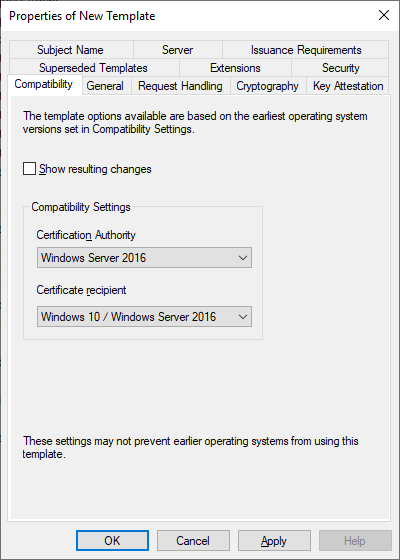
Set the Compatibility to Windows Server 2016 / Windows 10.
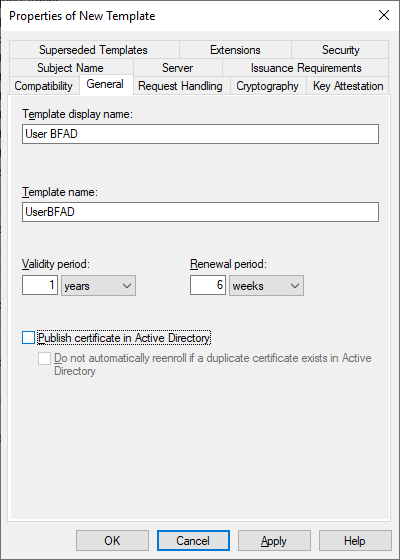
We’ll name this template User BFAD. This template will be used for online requests.
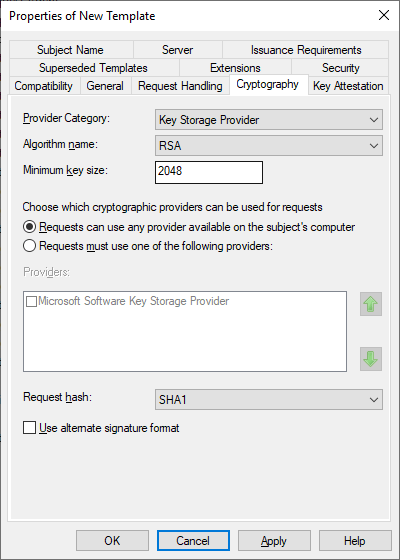
On the Cryptography tab, we’ll set the Provider Category to Key Storage Provider and the Algorithm to RSA, however the settings here don’t really matter unless you want to issue an ECC certificate in which case you need to change algorithm.
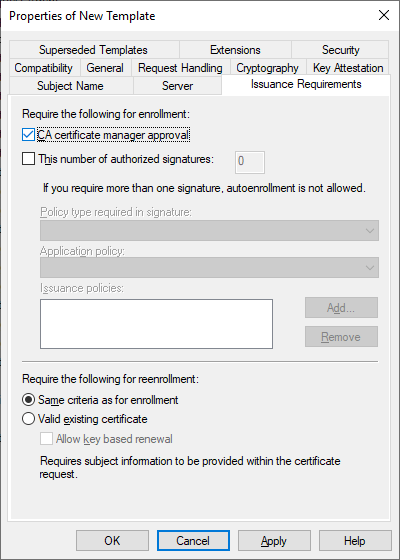
Enable CA certificate manager approval. This allows us to modify pending requests based on this template.
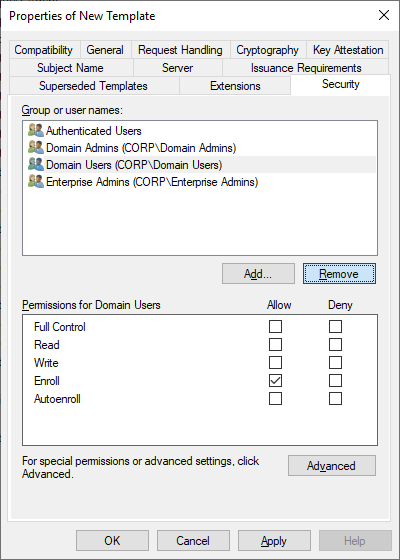
As usual, change the template security to remove your own account and, in this particular case, Domain Users. We should be left with enrollment permissions for Enterprise Admins and Domain Admins.
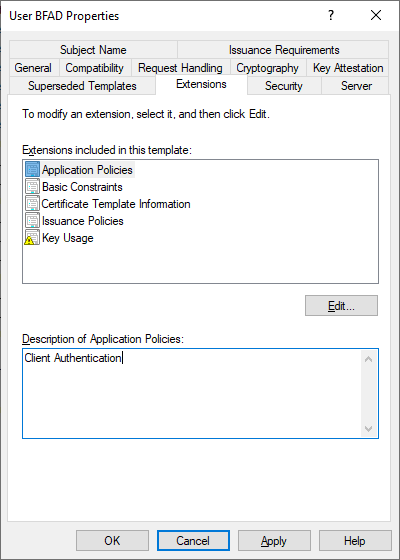
You can also remove the Encrypting File System and Secure Email EKUs from the Application Policies extension, but this is optional.
Finally, click OK to save the template. Next, duplicate it.

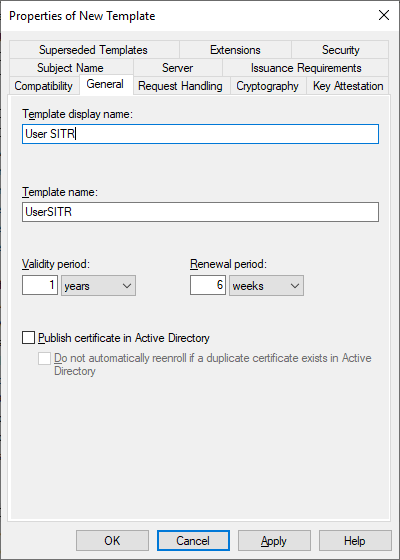
Set the name of the duplicated User BFAD template to User SITR. This template will be used for offline requests.
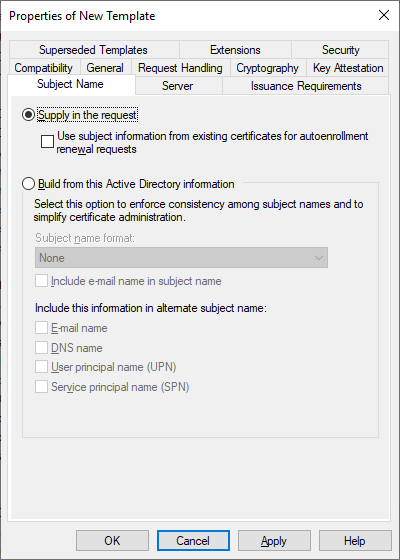
Change the Build from Active Directory information setting to Supply in the request, then click OK to save the template.
We should now have two templates to work with.
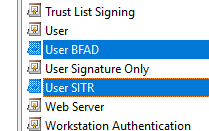
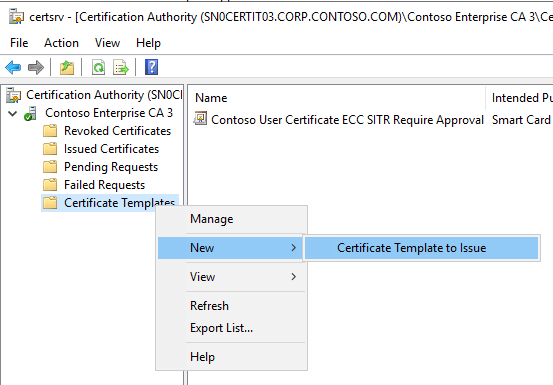
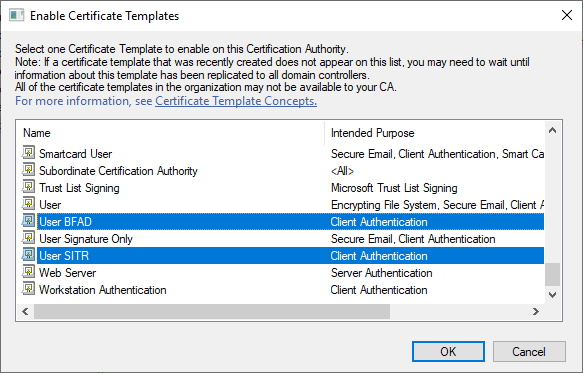
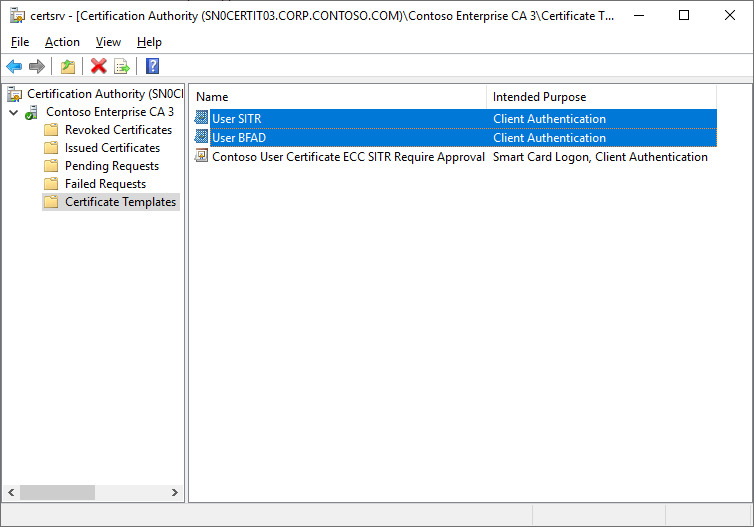
On your CA of choice, publish the two new templates.
Requesting Certificates
Next, we’ll generate some requests and attempt to issue certificates. To simplify this, I wrote a PowerShell module a few years back that assists in this exact purpose. You can find it here, follow the instructions to compile/install it, or you can create your own requests using the UI or certreq.exe (however I won’t cover it here). I’ll be using the module, though. One thing to note about the module is that the Submit-CertificateRequest cmdlet both submits, updates and approves requests in one command.
Use case 1: Custom request with Offline template
Let’s start with the first use case, a Supply in Request template where we construct a request from scratch that includes the Contoso A0 AMA Policy OID (which is linked to Enterprise Admins).
using module CertRequestTools

# Get the config string of the target CA
$CA = Get-CAConfigString -ComputerName sn0certit03

# Contoso A0 AMA Policy OID (linked to Enterprise Admins)
$AmaExtension = New-CertificatePoliciesExtension -Oid "1.3.6.1.4.1.311.21.8.7040962.2787921.15945120.15228526.9576249.96.15682496.7632638"

New-PrivateKey -RsaKeySize 2048 `
| New-CertificateRequest `
    -Subject "CN=MyUserAccount" `
    -UserPrincipalName "myuseraccount@corp.contoso.com" `
    -OtherExtension $AmaExtension `
| Submit-CertificateRequest `
    -ConfigString $CA `
    -Template UserSITR `
| Export-PemCertificate -OutputDirectory C:\temp
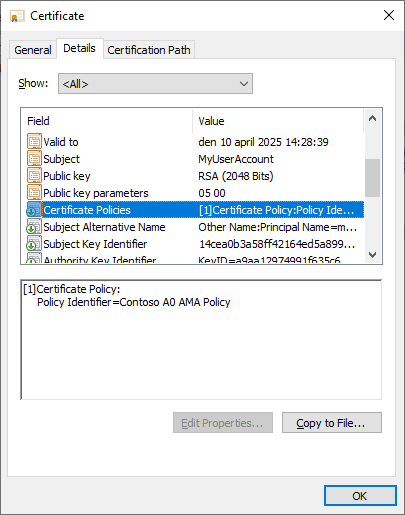
As we can see, the issued certificate indeed includes the AMA OID.
Use case 2: Update pending request with Offline template
In the second use case, we do not include the AMA OID in the original request; instead, we add it to the pending request as a Certificate Manager.
The code in Submit-CertificateRequest is a little special in this case; it was designed to either receive a request from New-CertificateRequest with all the appropriate extensions and properties already encoded, or a base64 encoded request (from an external source) where we instead add any overriding extensions or properties to the pending request via Submit-CertificateRequest instead.
using module CertRequestTools

# Get the config string of the target CA
$CA = Get-CAConfigString -ComputerName sn0certit03

# Contoso A0 AMA Policy OID (linked to Enterprise Admins)
$AmaExtension = New-CertificatePoliciesExtension -Oid "1.3.6.1.4.1.311.21.8.7040962.2787921.15945120.15228526.9576249.96.15682496.7632638"

$Request = New-PrivateKey -RsaKeySize 2048 `
| New-CertificateRequest `
    -Subject "CN=MyUserAccount" `
    -UserPrincipalName "myuseraccount@corp.contoso.com"

$Request.Request | Submit-CertificateRequest `
    -ConfigString $CA `
    -Template UserSITR `
    -OtherExtension $AmaExtension `
| Export-PemCertificate -OutputDirectory C:\temp
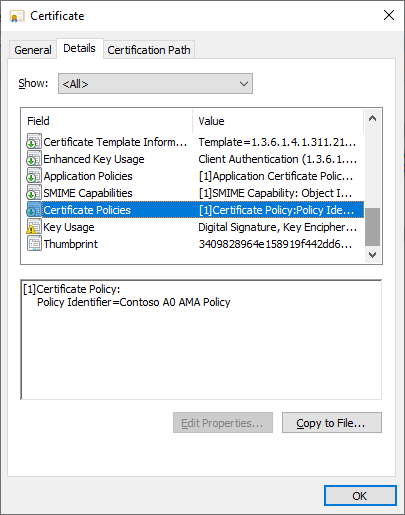
As we can see, the Certificate Policies extension is now at the bottom instead. Extensions can come in any order, but in our case for these purposes this indicates it was added manually to the pending request in the CA.
Use case 3: Update pending request with Online template
The final use case is using an online request and adding the AMA OID to it while it is pending in the CA. In this case, the CA only cares about the public key in the original request, and populates the certificate with information from the user’s account in Active Directory. However, a certificate manager can still modify the request while pending in the CA, which is where we add the AMA OID.
using module CertRequestTools

# Get the config string of the target CA
$CA = Get-CAConfigString -ComputerName sn0certit03

# Contoso A0 AMA Policy OID (linked to Enterprise Admins)
$AmaExtension = New-CertificatePoliciesExtension -Oid "1.3.6.1.4.1.311.21.8.7040962.2787921.15945120.15228526.9576249.96.15682496.7632638"

$Request = New-PrivateKey -RsaKeySize 2048 `
| New-CertificateRequest `
    -Subject "CN=MyUserAccount" # This parameter is required, but is not used as the template builds Subject from AD

$Request.Request | Submit-CertificateRequest `
    -ConfigString $CA `
    -Template UserBFAD `
    -OtherExtension $AmaExtension `
| Export-PemCertificate -OutputDirectory C:\temp
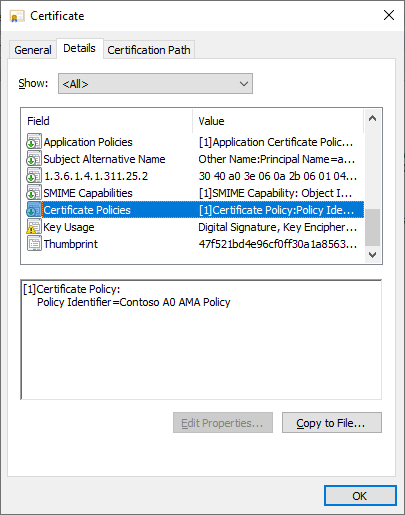
Here, we can see that the AMA OID was added to the certificate. Worth noting is that this also works for Enroll on Behalf of (EOBO), as long as the Enrollment Agent has the Certificate Manager privilege in the CA and the template or CA is configured to require manager approval.
Final Thoughts and Wrap-Up
Essentially, there are many many ways to misconfigure your PKI, and this is just another one for the pile, as the SpecterOps team showed us in 2021. However I figured I needed to write about it as it is a poorly understood interaction, and something that can completely ruin your day if you do not configure your environment properly.
I still think AMA is a nice feature, and I’ll probably continue using it, but with additional consideration for cases where PKI is not as controlled as in the environments I usually find myself in.
Finally, I tried to compress my experience on the matter as much as possible while writing this. There are other aspects that I know of that I didn’t include to keep it reasonably short (and it turned out quite long despite this).
Feel free to add comments if there is something else you are curious about, or if you feel some important aspect is missing.
 Q&D Security
3 comments